[LeRobot]使用Mujoco(和Isaacsim)实现模拟学习的仿真
1. 使用gym-hil(human-in-loop)在mujoco中进行仿真并构建lerobot规范数据集,并且使用lerobot数据集可视化工具查看数据集;2. 使用构建好的数据集训练自己的策略;3. 如何在仿真中评估自己的策略,并且查看可视化的结果;
学习目标:
1. 使用gym-hil(human-in-loop)在mujoco中进行仿真并构建lerobot规范数据集,并且使用lerobot数据集可视化工具查看数据集;
2. 使用构建好的数据集训练自己的策略;
3. 如何在仿真中评估自己的策略,并且查看可视化的结果;
参考阅读:
LeRobot Tutorial: Imitation Learning in Sim
参考数据集:
数据集1:Lerobot in Isaacsim with two cameras(front and wrist)
数据集2:Lerobot in real scene with two cameras(top and wrist)
探索其他数据集:Explore LeRobot Datasets
其他的推荐视频课程:
苏州吉浦迅:NVIDIA Isaac Sim 5.0机器人仿真全流程实战——从资产导入到LeRobot机械臂应用
环境准备
conda create -y -n lerobot python=3.10
conda activate lerobot
conda install ffmpeg -c conda-forge
git clone https://github.com/huggingface/lerobot.git
cd lerobot
pip install -e .
pip install -e ".[hilserl]"
wandb login

#hf login for dataset upload(huggingface-cli is out of date)
export HUGGINGFACE_TOKEN=hf_qt*************c
export HTTP_PROXY=http://127.0.0.1:7890
export HTTPS_PROXY=http://127.0.0.1:7890
hf auth login --token ${HUGGINGFACE_TOKEN} --add-to-git-credential
git config --global credential.helper store
HF_USER=$(hf auth whoami | head -n 1)
echo $HF_USER
遥控并构建(操作和视频)数据集——使用手柄或者键盘
python -m lerobot.scripts.rl.gym_manipulator --config_path path/to/env_config_gym_hil_il.jsonTo use gym_hil with LeRobot, you need to use a configuration file.
To teleoperate and collect a dataset, we need to modify this config file and you should add your repo_id here: "repo_id": "il_gym", and "num_episodes": 30, and make sure you set mode to record, "mode": "record".
If you do not have a Nvidia GPU also change "device": "cuda" parameter in the config file (for example to mps for MacOS).
By default the config file assumes you use a controller(gamepad). To use your keyboard please change the envoirment specified at "task" in the config file and set it to "PandaPickCubeKeyboard-v0".
Keyboard controls
Use the spacebar to enable control and the following keys to move the robot:
  Arrow keys: Move in X-Y plane
  Shift and Shift_R: Move in Z axis
  Right Ctrl and Left Ctrl: Open and close gripper
ESC: Exit示例的env_config_gym_hil_il.json为:
{
    "type": "hil",
    "wrapper": {
        "gripper_penalty": -0.02,
        "display_cameras": false,
        "add_joint_velocity_to_observation": true,
        "add_ee_pose_to_observation": true,
        "crop_params_dict": {
            "observation.images.front": [
                0,
                0,
                128,
                128
            ],
            "observation.images.wrist": [
                0,
                0,
                128,
                128
            ]
        },
        "resize_size": [
            128,
            128
        ],
        "control_time_s": 15.0,
        "use_gripper": true,
        "fixed_reset_joint_positions": [
            0.0,
            0.195,
            0.0,
            -2.43,
            0.0,
            2.62,
            0.785
        ],
        "reset_time_s": 2.0,
        "control_mode": "gamepad"
    },
    "name": "franka_sim",
    "mode": "record",
    "repo_id": "pepijn223/il_gym0",
    "dataset_root": null,
    "task": "PandaPickCubeGamepad-v0",
    "num_episodes": 30,
    "episode": 0,
    "pretrained_policy_name_or_path": null,
    "device": "mps",
    "push_to_hub": true,
    "fps": 10,
    "features": {
        "observation.images.front": {
            "type": "VISUAL",
            "shape": [
                3,
                128,
                128
            ]
        },
        "observation.images.wrist": {
            "type": "VISUAL",
            "shape": [
                3,
                128,
                128
            ]
        },
        "observation.state": {
            "type": "STATE",
            "shape": [
                18
            ]
        },
        "action": {
            "type": "ACTION",
            "shape": [
                4
            ]
        }
    },
    "features_map": {
        "observation.images.front": "observation.images.front",
        "observation.images.wrist": "observation.images.wrist",
        "observation.state": "observation.state",
        "action": "action"
    },
    "reward_classifier_pretrained_path": null
}
遥控操作界面:
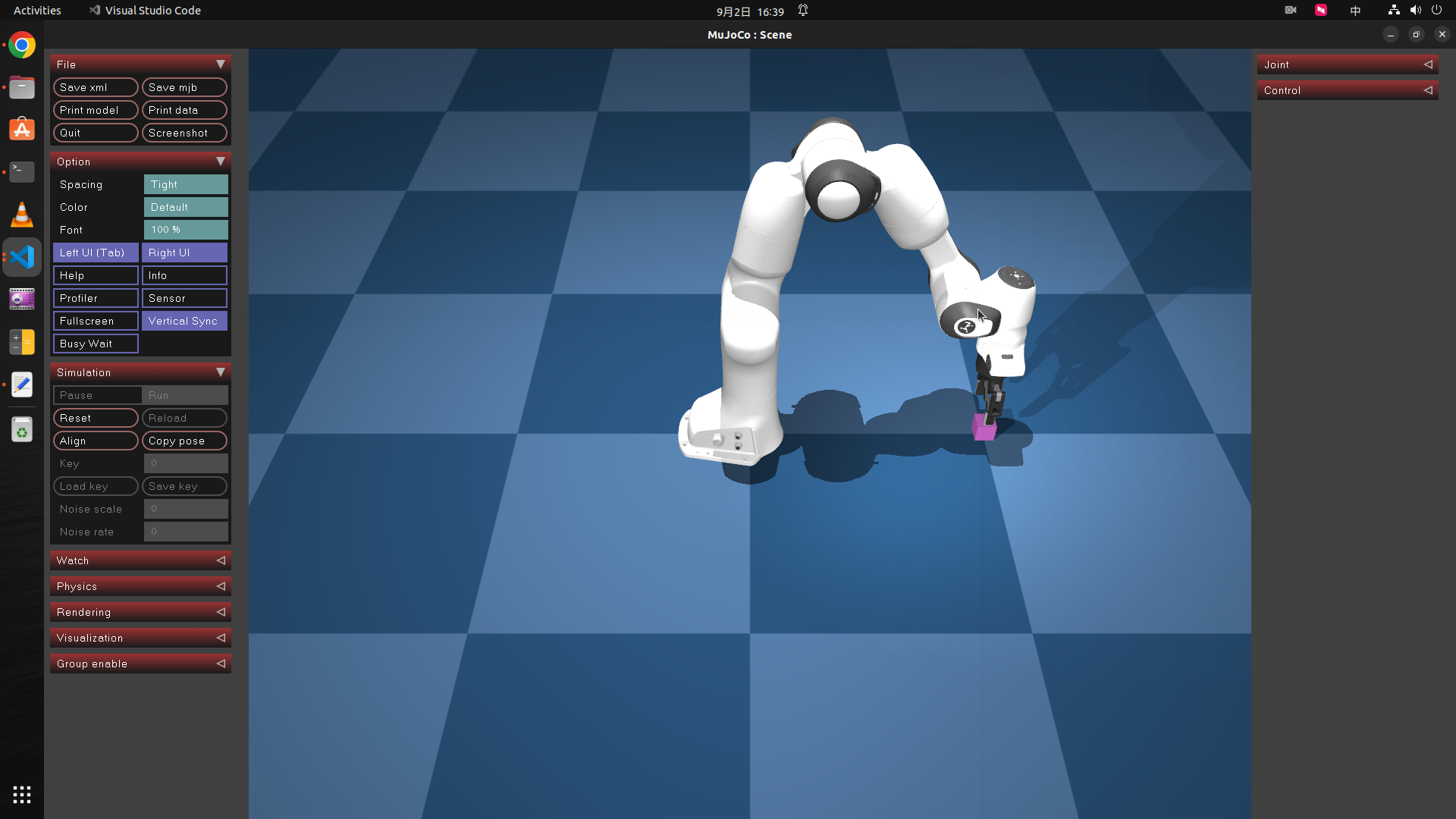
遥控操作结束后,数据集可以自动推送到huggingface的相应数据集仓库,详见env_config_gym_hil_il.json的push_to_hub字段和代码仓库的lerobot/src/lerobot/scripts/rl/gym_manipulator.py。
数据集本地的缓存目录为:~/.cache/huggingface/lerobot/{repo-id}。如果再次执行遥控操作脚本,没有更改数据集id,则需要删除缓存后再执行脚本,否则脚本执行后mujoco界面会闪退、脚本执行失败。
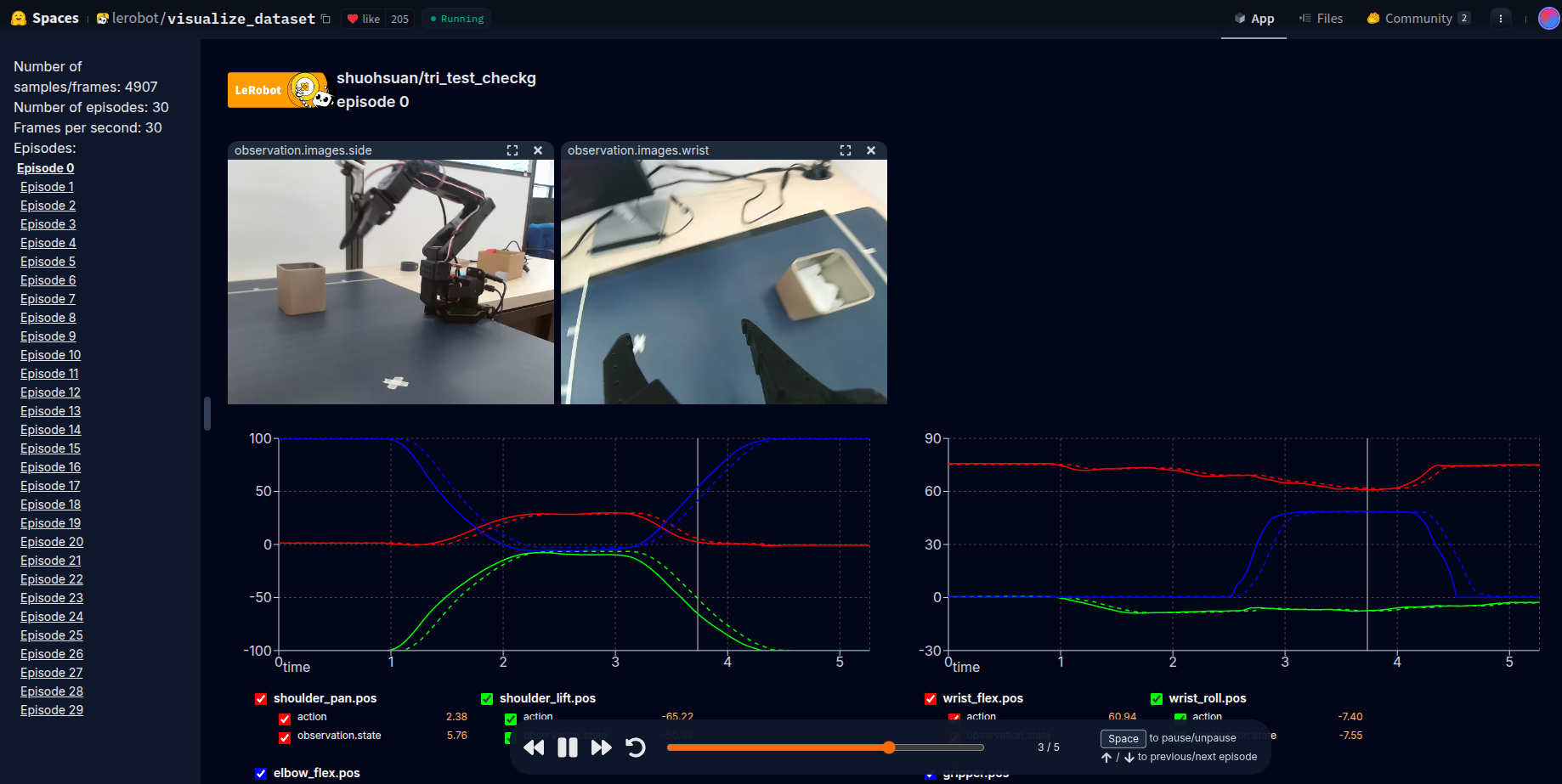
数据集可视化查看
假设在上一步,遥控数据集已上传至数据集仓库(repo id):pepijn223/il_gym0
If you uploaded your dataset to the hub you can visualize your dataset online by copy pasting your repo id.
使用数据集训练策略
lerobot-train \
  --dataset.repo_id=${HF_USER}/il_gym0 \
  --policy.type=act \
  --output_dir=outputs/train/il_sim_test \
  --job_name=il_sim_test \
  --policy.device=cuda \
  --wandb.enable=true
Let’s explain the command:
-
We provided the dataset as argument with
--dataset.repo_id=${HF_USER}/il_gym. -
We provided the policy with
policy.type=act. This loads configurations from configuration_act.py. Importantly, this policy will automatically adapt to the number of motor states, motor actions and cameras of your robot (e.g.laptopandphone) which have been saved in your dataset. -
We provided
policy.device=cudasince we are training on a Nvidia GPU, but you could usepolicy.device=mpsto train on Apple silicon. -
We provided
wandb.enable=trueto use Weights and Biases for visualizing training plots. This is optional but if you use it, make sure you are logged in by runningwandb login.
Training should take several hours, 100k steps (which is the default) will take about 1h on Nvidia A100. You will find checkpoints in outputs/train/il_sim_test/checkpoints.
上传训练策略的checkpoint
huggingface-cli upload ${HF_USER}/il_sim_test \
  outputs/train/il_sim_test/checkpoints/last/pretrained_model
在仿真环境中评估训练策略
python -m lerobot.scripts.rl.eval_policy --config_path=path/to/eval_config_gym_hil.json在Isaacsim/Isaaclab中构建lerobot训练数据集(to be continued...)

中国智能体开发者社区,聚焦智能体与大模型开发,提供前沿资讯、实用工具链、开源项目及行业案例。通过技术沙龙、开发者大赛等活动,促进经验交流与协作,助力开发者快速构建创新智能应用。
更多推荐
 12
12 0
0- 0


 已为社区贡献2条内容

所有评论(0)