SmartGit 25.1 Version 25.1.093
SmartGit 25.1 focuses on practical tooling improvements around AI assistance, metadata, worktrees, LFS, and pull-request handling
Commit message generation and rewording
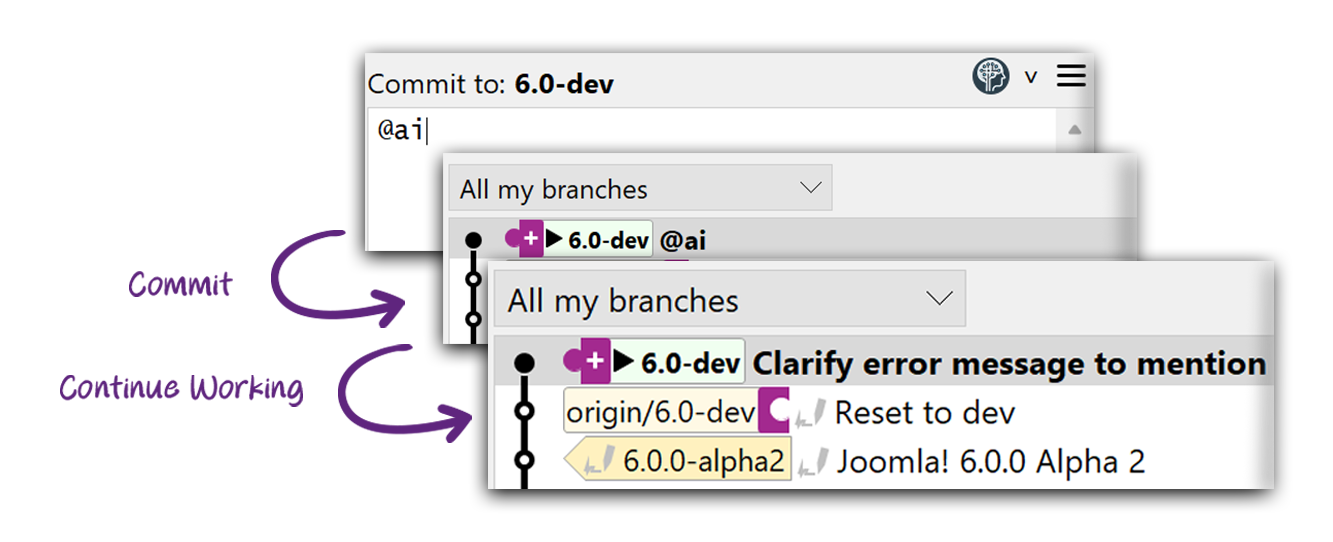
Let SmartGit craft clean commit messages for you. Generate on demand, or commit now and let AI finish the wording while you keep coding.
- Click to generate – In the Commit Message view or Commit dialog, click the AI action to produce a clear, conventional message for your changes.
- Background mode with
@ai– Type@aias the message and commit. Keep working; SmartGit will replace the placeholder with a proper message when the AI result arrives. - WIP friendly – Commit fast with a WIP (work in progress) placeholder. SmartGit later rewords it into a polished summary, so your history stays tidy.
- Non-disruptive – Your code stays the same; only the commit message is updated.
Automatic Stash description
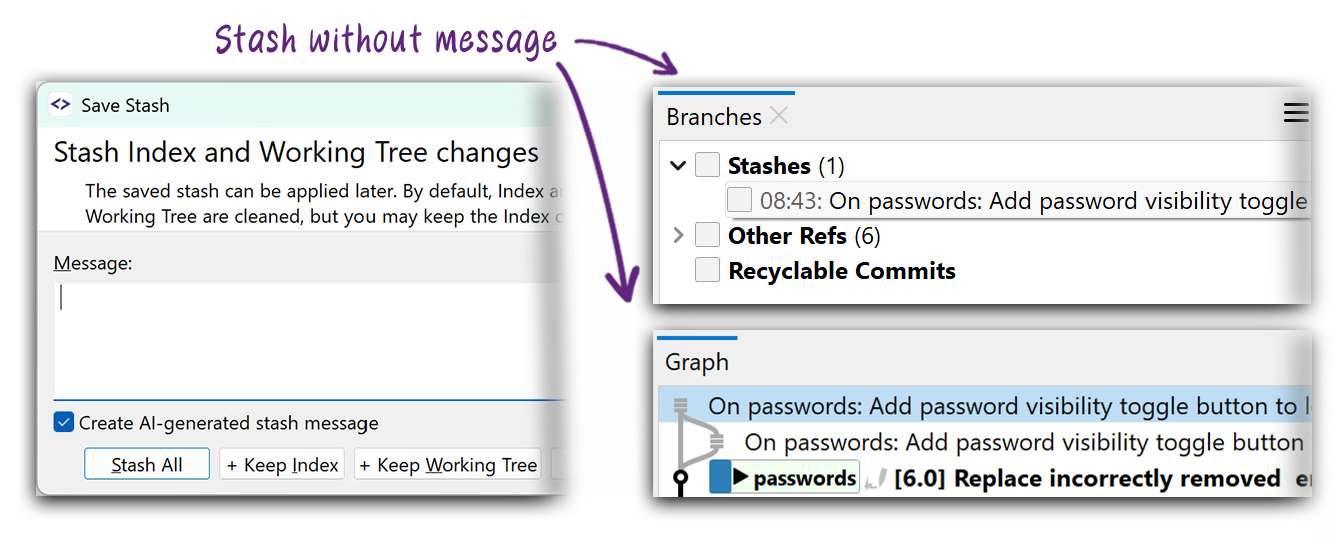
Skip the typing and keep your stashes searchable.
- Auto description – Enable Create AI-generated stash message and stash without a message; SmartGit writes a clear summary for you.
- Consistent names – Stashes in Branches and the Graph show a concise, change-based title, so you can find and reapply the right one fast.
Explain commits: summaries on demand
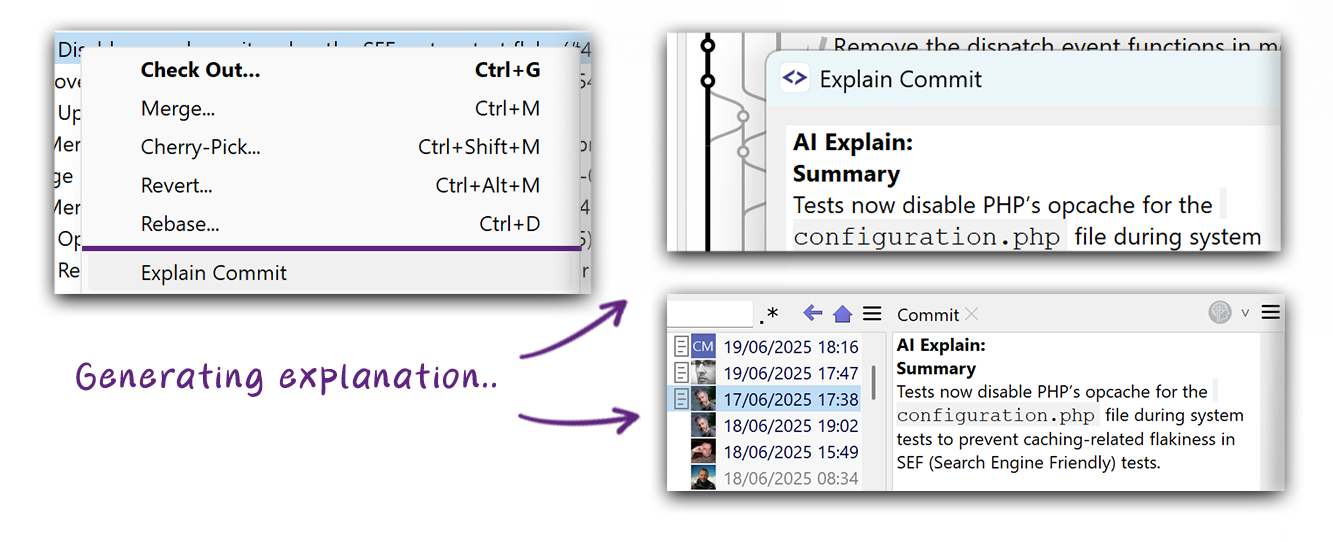
Need to catch up fast? Let SmartGit explain what has changed.
- Right click > Explain Commit – Generate a concise Summary for the selected commit.
- Multi-commit, concurrent – Select several commits and run Explain; SmartGit will generate all explanations in the background and store the result to Git Notes.
- Diff-aware explanation – Uses the commit message and diff to highlight the intent and key changes.
Privacy first, by design
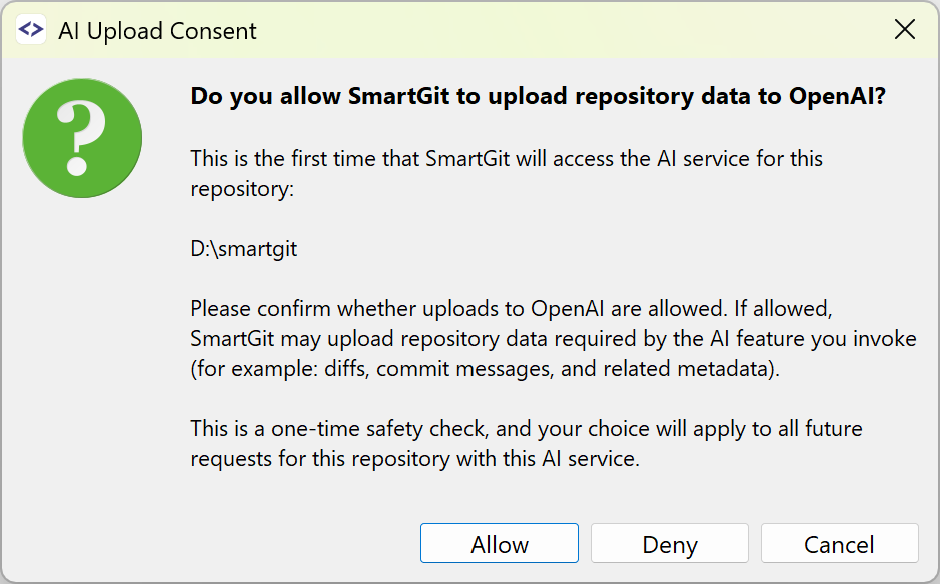
Some tools upload project data as soon as you invoke AI. SmartGit does not. It only sends data to the provider you choose when you explicitly allow it.
- Explicit opt in – On the first AI request per repository and provider, a consent dialog appears; nothing is uploaded until you approve.
- Granular control – Revoke later or disable globally at any time; switch providers whenever you need.
- Limits and transparency – Configure diff context size, cap the maximum diff size, and enable debug logging to inspect exactly what is sent.
Your AI, Flexible Prompts and Git Notes
SmartGit connects to the AI of your choice. Pick a popular cloud provider or your in-company on-premise LLM, set it up once, and use it across all available AI applications.
Tune the tone with flexible prompts so messages read like from your team. Keep results where they matter by saving them as Git Notes – attached to the commits, visible in the Graph, and easy to share with your teammates.
General Improvements
Git Notes: first-class and configurable
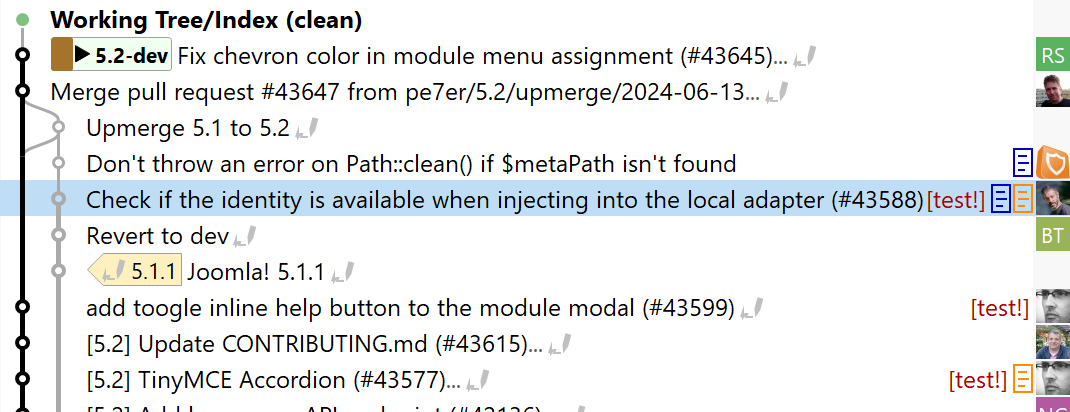
Git Notes are metadata you can attach to commits without changing them.
- Pick your namespace – choose the refs/notes/ category and how notes appear in the Log graph.
- Work in the UI – add, view, and edit notes; they show up in Commit details and the Graph.
- Share and automate – push/fetch notes with the repo, and save AI explanations as notes.
Worktrees: smoother and safer
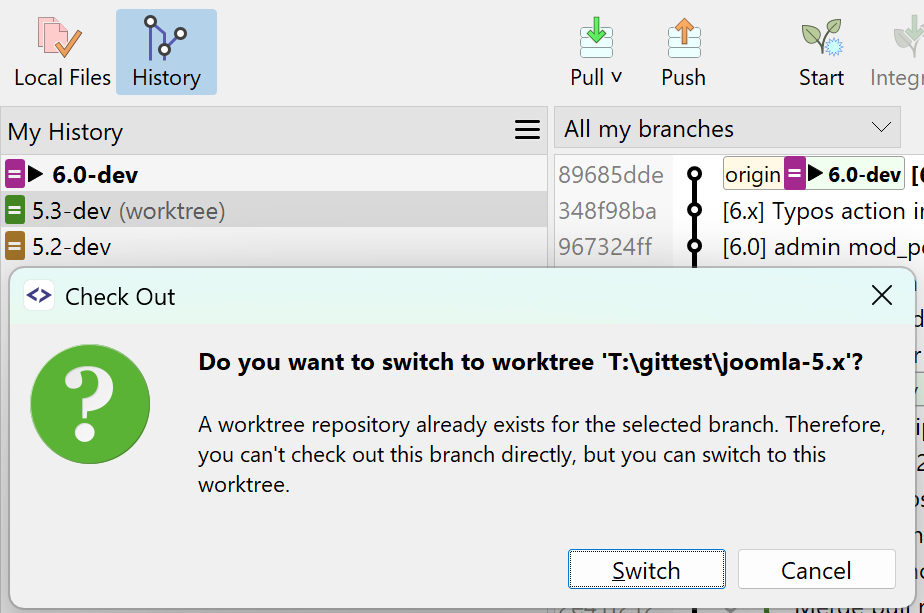
Support for Git’s worktree feature has been improved in several ways:
- See them at a glance – branches with own worktree are marked in the Log graph.
- Smarter Checkout – if a branch is already checked out elsewhere, Checkout opens that worktree.
- Manage in the UI – new Add, Remove, and Prune commands in the Standard window.
- Prevent pitfalls – detect unknown or invalid worktrees early.
- Accurate status detection – fixes for detecting the branch of rebasing or bisecting worktrees.
Octopus Merge
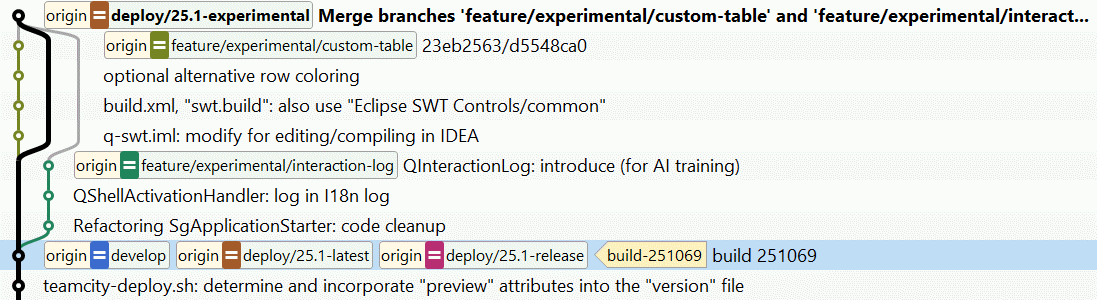
Octopus merge commits are merge commits with more than two parents. These can be created now either by merging directly multiple branches (into the current branch) or by amend-committing a merge to a merge commit.
SmartGit as Credential helper
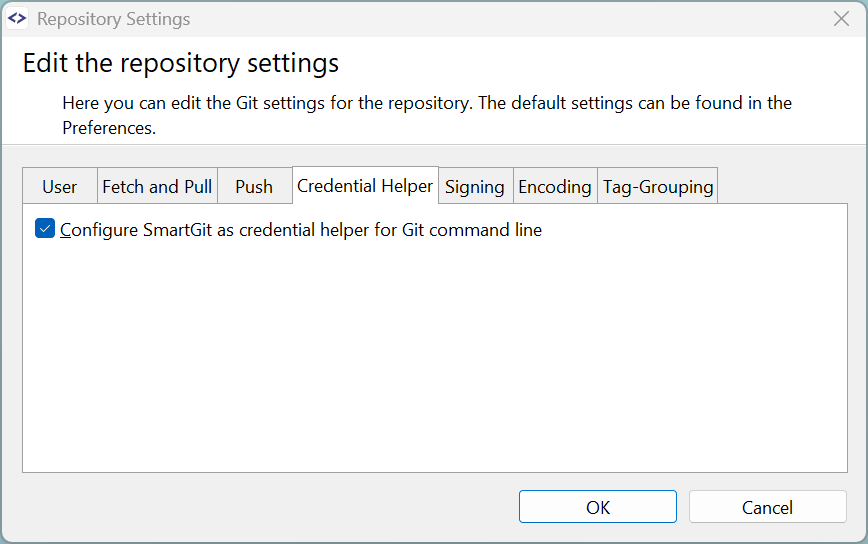
SmartGit can be configured in the preferences, Executables page, to work as Credential Helper for all commands invoked from SmartGit.
On top of that, it also is possible to use SmartGit as Credential Helper for shell scripts, other applications or Git command line – no need to configure authentication separately for such uses. Either select this option directly when cloning a repository, or enable it later in the Repository Settings.
Forced push: choose the right policy
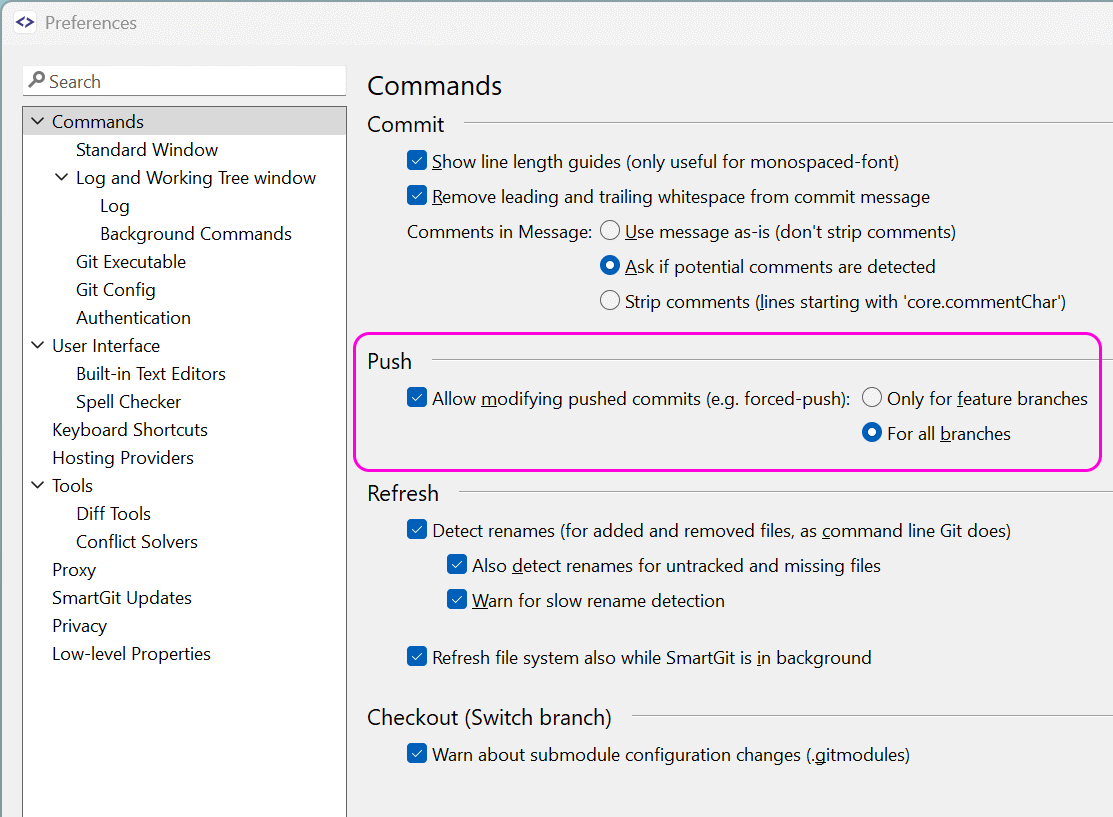
You now have three options for handling forced pushes. Pick what fits your workflow.
- Don’t allow forced pushes – Best for protected mainline branches (e.g.,
main,release) in shared or regulated projects where history must never change. - Allow forced pushes to feature branches (recommended) – Ideal for Feature Flow/Git Flow where short-living feature branches are rebased or squashed before merging. Lets contributors clean up history while still protecting mainline branches.
- Allow forced pushes to all branches – Suits solo repos, scratch forks, or experimental work where maximum flexibility matters more than shared history safety.
Squash Commits of different authors
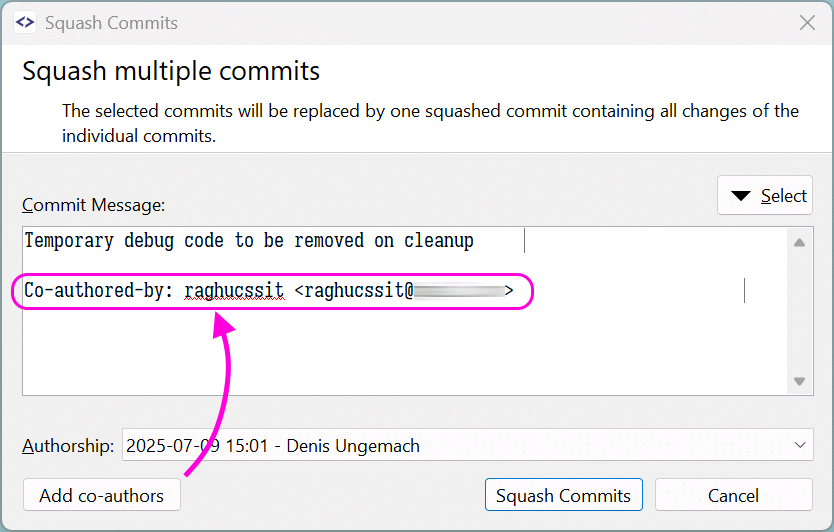
Squash multiple commits of different authors without losing credit. Pick the author for the resulting commit and use Add co-authors to insert Co-authored-by: lines for all other authors.
More small helpers play together so shared work stays properly attributed:
- Log > Details – copy any contributor’s
name <email>and paste it where needed. - Edit Author – quickly paste
name <email>when setting authorship.
LFS improvements: clearer states, faster refresh
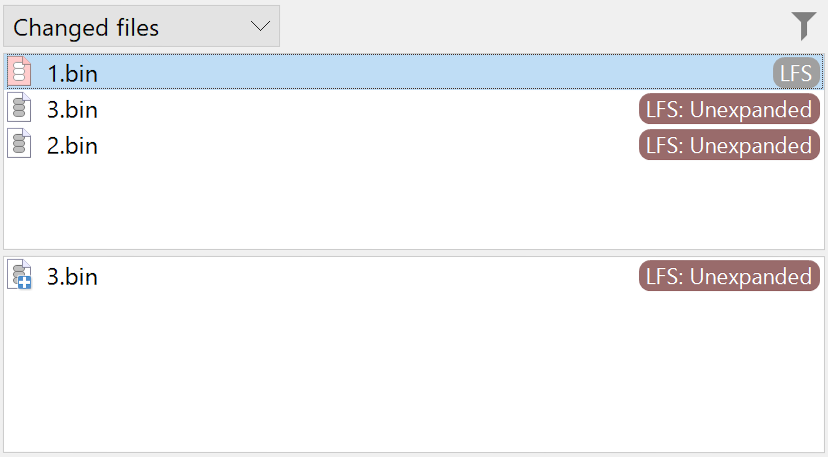
SmartGit 25.1 makes problematic LFS statuses obvious and speeds up common operations.
- See unexpanded files – The Files view marks pointer files with an LFS: Unexpanded badge, so you immediately notice when objects are not inflated (e.g., if LFS is not installed).
- Helpful tooltips – Files shows a tooltip for LFS-inconsistent entries to explain what is wrong and how to fix it.
- Faster refresh – LFS Refresh is faster on repositories with large files.
All Features for non-commercial licenses
Open-source developers, academic users, and users at supported charitable institutions now have access to the complete SmartGit feature set – identical to paying customers.
Standard Window Improvements
Remote Management in All Branches + Tags
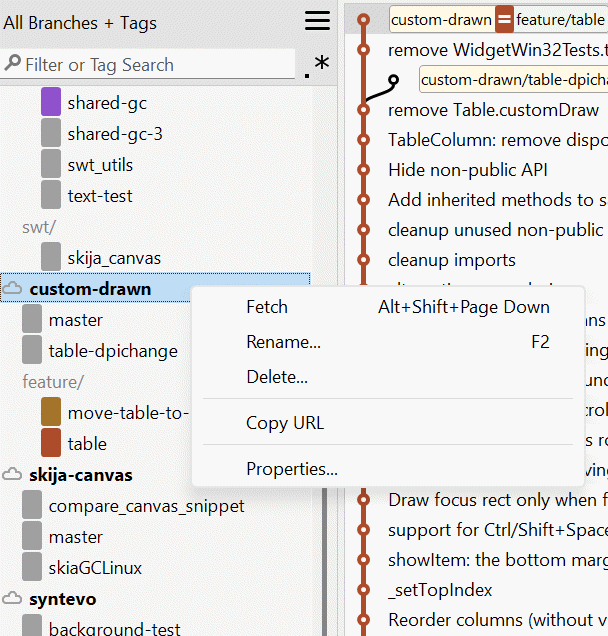
You can now access and manage remotes right from All Branches + Tags. Use the context menu to work with remotes alongside branches and tags.
- Fetch – refresh remote refs without merging, ideal for a quick and selective update.
- Rename – change the remote’s local name (e.g.,
origintomyhost), including related branches, without affecting others. - Delete – remove your local tracking of a remote; re-add it any time.
- Copy URL – copy the remote URL to the clipboard for sharing or scripts.
- Properties – view or edit the remote’s URL and related settings.
Tip: in the filter box, type remote to quickly show all remotes.
My History: Customize displayed Pull Requests
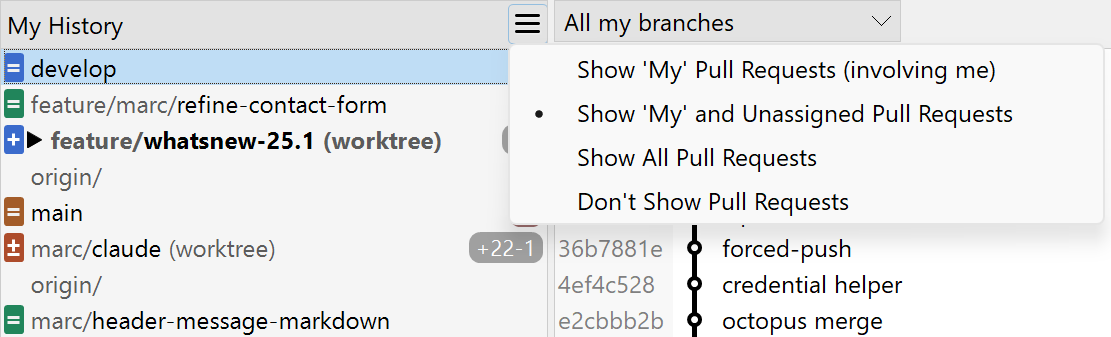
You can now customize the Pull Request display. Use the new options to show ‘My’, ‘My and Unassigned’, or All pull requests, or choose to Don’t Show any pull requests, allowing you to focus on what needs your attention.
My History: Focused Rebasing Display
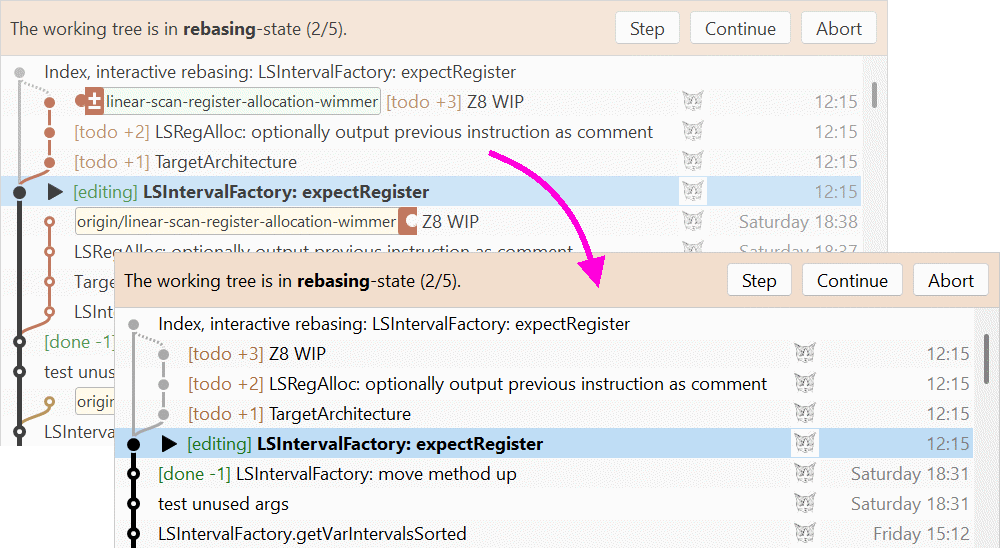
When rebasing, it is easy to get confused about different commits and branches. This is especially important if you have multiple local branches.
To overcome this, My History now hides irrelevant branches while in rebasing mode and shows only the rebase-relevant commits.
If you need to access hidden branches (e.g., to cherry-pick a commit), temporarily use All Branches + Tags.
Discard can now undo complete renames and delete untracked files
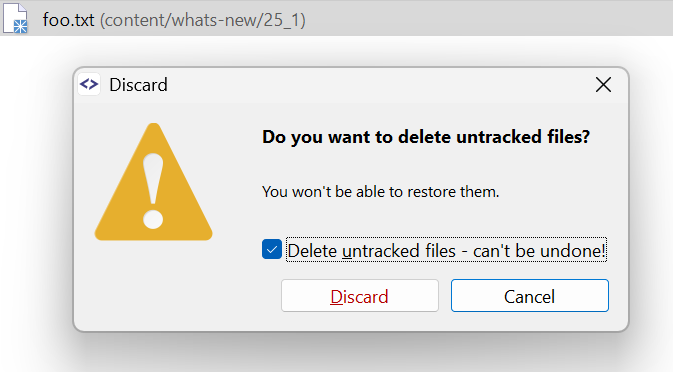
Clean up with one command.
- Renamed files – Discard restores the file to its original name and path and drops any local edits, so your working tree matches HEAD again.
- Untracked files – Discard can now delete them (with confirmation) – handy for generated or temporary files you don’t want to keep.
More Commands for Worktrees, Configure Tracking, Push-To
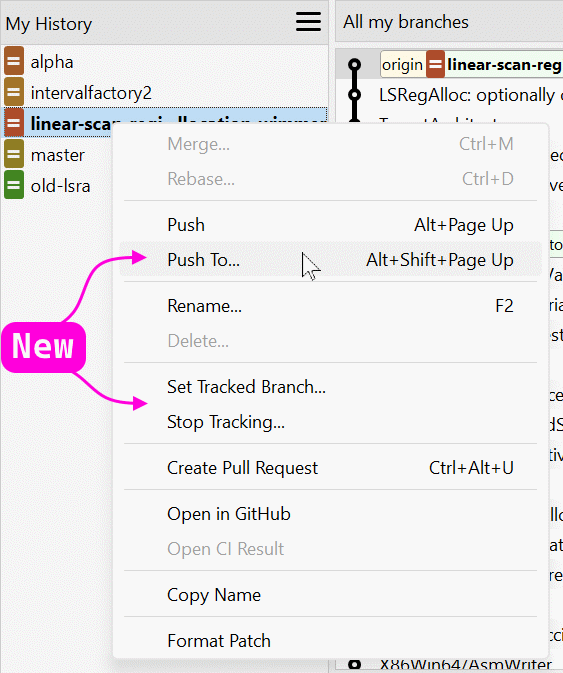
SmartGit 25.1 adds more branch commands to My History and All Branches + Tags, which you may already know from Log and Working Tree window.
- Push To… – Push the current branch to a specific remote/branch, or create a new one there. Great for publishing a feature to upstream or a fork, or when you need a one-off target. Unlike regular Push, it targets a single remote and lets you choose the exact ref (including force if needed).
- Set Tracked Branch… – Point your local branch to the correct upstream branch so Push/Pull know where to go and the UI can show ahead/behind. Use it when you renamed a branch or switched remotes.
- Stop Tracking… – Remove the upstream setting so the branch is no longer tied to a remote; useful if the remote branch was deleted or you want to publish under a new name/remote next time you push.
These options make it easier to publish, retarget, and clean up branches without leaving the UI.
Preferences: managing API tokens and searching Low-Level Properties
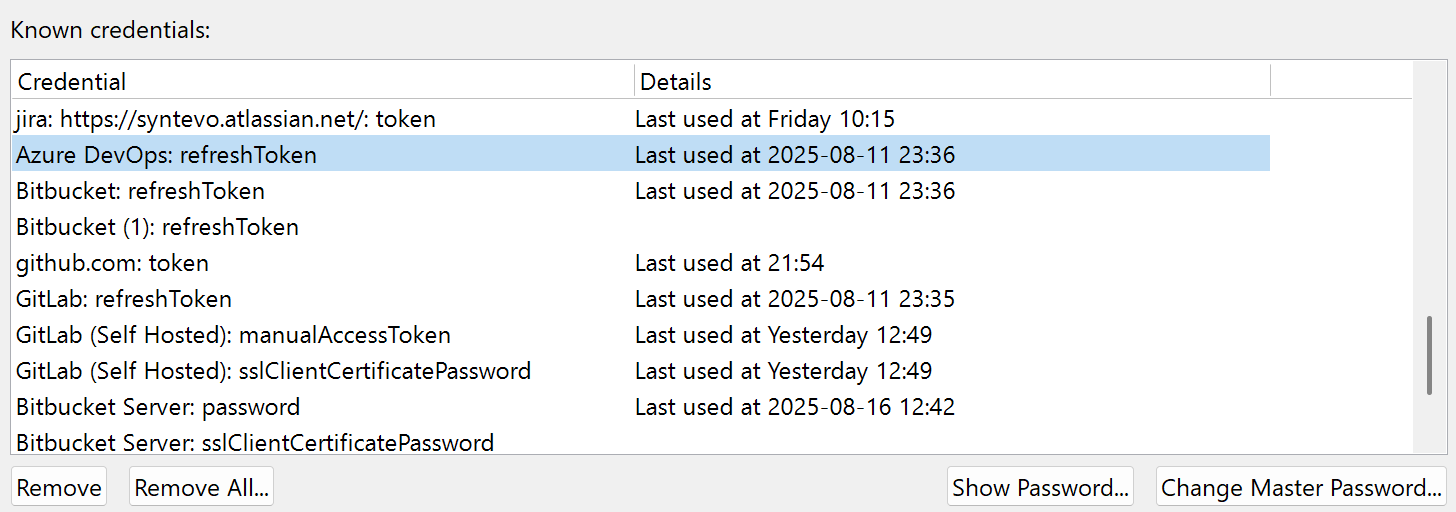
API tokens (GitHub and others) can now be accessed and managed directly in the Preferences. Both, tokens and passwords, can be viewed with the Show Password button.
The enhanced search now also includes Low-level Properties, making it easier to find and adjust advanced settings by name.
Update Check channels: tailored notifications
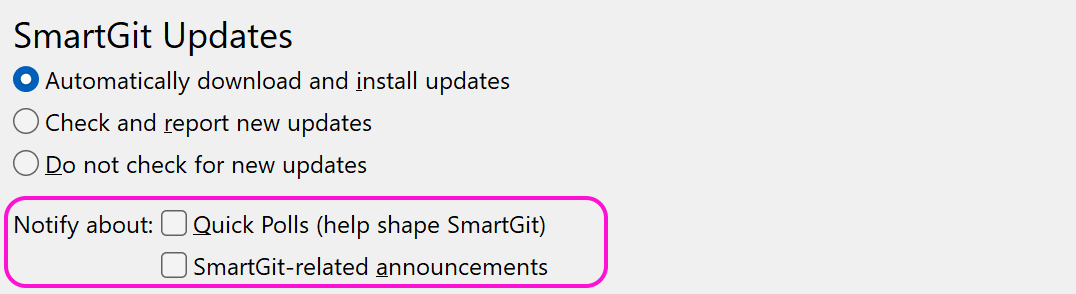
SmartGit 25.1 adds Update Check channels so you decide which notifications to receive. In Preferences > SmartGit Updates, select the topics that interest you in addition to the basic new-version alerts.
We recommend opting in to Quick Polls to take part in short surveys that help shape SmartGit’s future direction. You can change your choices at any time.

火山引擎开发者社区是火山引擎打造的AI技术生态平台,聚焦Agent与大模型开发,提供豆包系列模型(图像/视频/视觉)、智能分析与会话工具,并配套评测集、动手实验室及行业案例库。社区通过技术沙龙、挑战赛等活动促进开发者成长,新用户可领50万Tokens权益,助力构建智能应用。
更多推荐
 26
26 0
0- 0


 已为社区贡献10条内容

所有评论(0)