实现一个免费可用的文生图的MCP Server
文生图模型为使用 Cloudflare Worker AI 部署 Flux 模型,是参照视频https://www.bilibili.com/video/BV1UbkcYcE24/?spm_id_from=333.337.search-card.all.click&vd_source=9ca2da6b1848bc903db417c336f9cb6b的复现。
概述
- 文生图模型为使用 Cloudflare Worker AI 部署 Flux 模型,是参照视频https://www.bilibili.com/video/BV1UbkcYcE24/?spm_id_from=333.337.search-card.all.click&vd_source=9ca2da6b1848bc903db417c336f9cb6b的复现
- Cursor MCP Server实现是参照文章https://juejin.cn/post/7485267450880229402#heading-9实现
Cloudflare部署 Flux 模型
获取Cloudflare账号和token
- 注册、登录等步骤省略
管理账号——账户API令牌——Workers AI——使用模版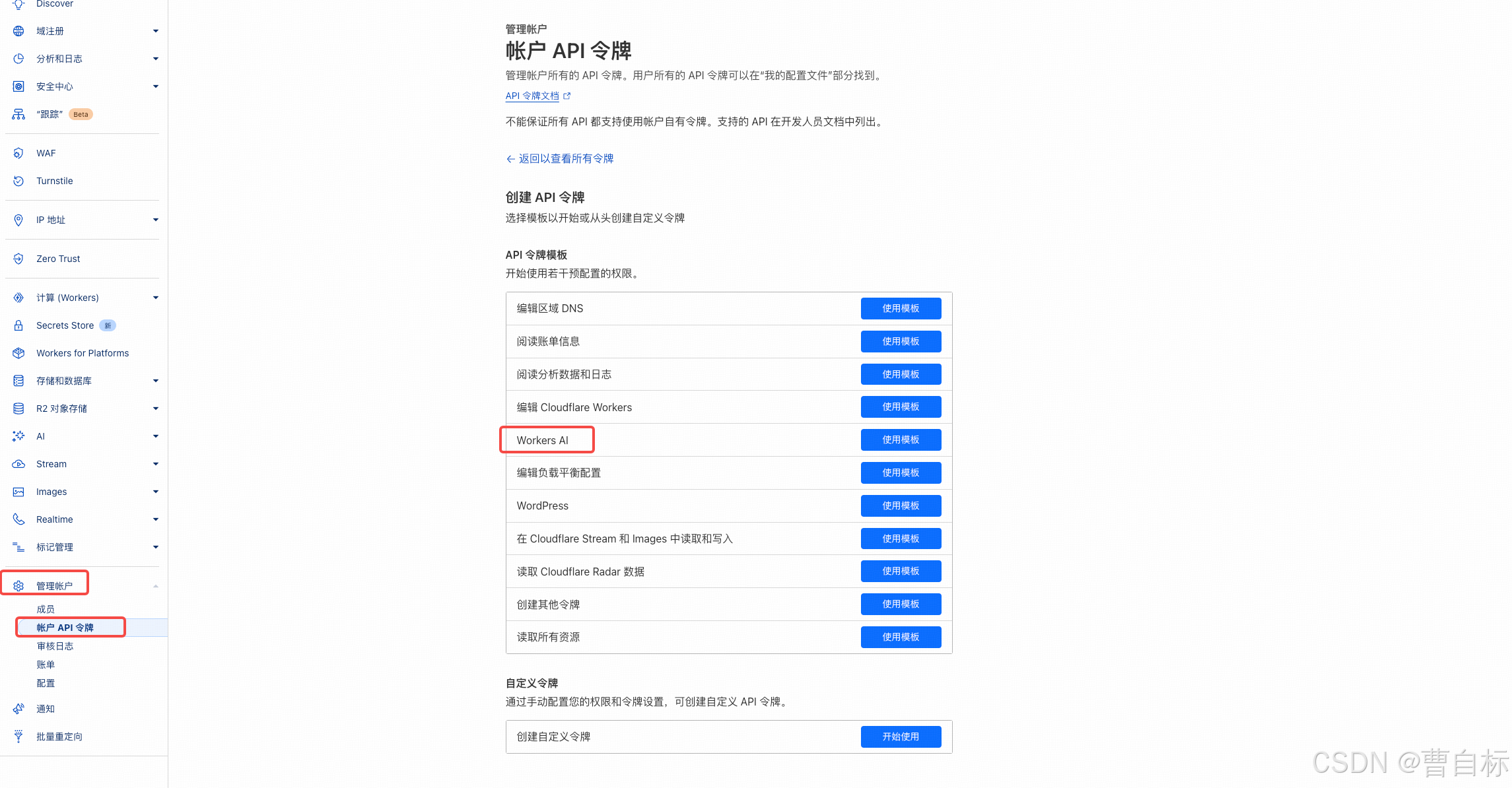
继续以显示摘要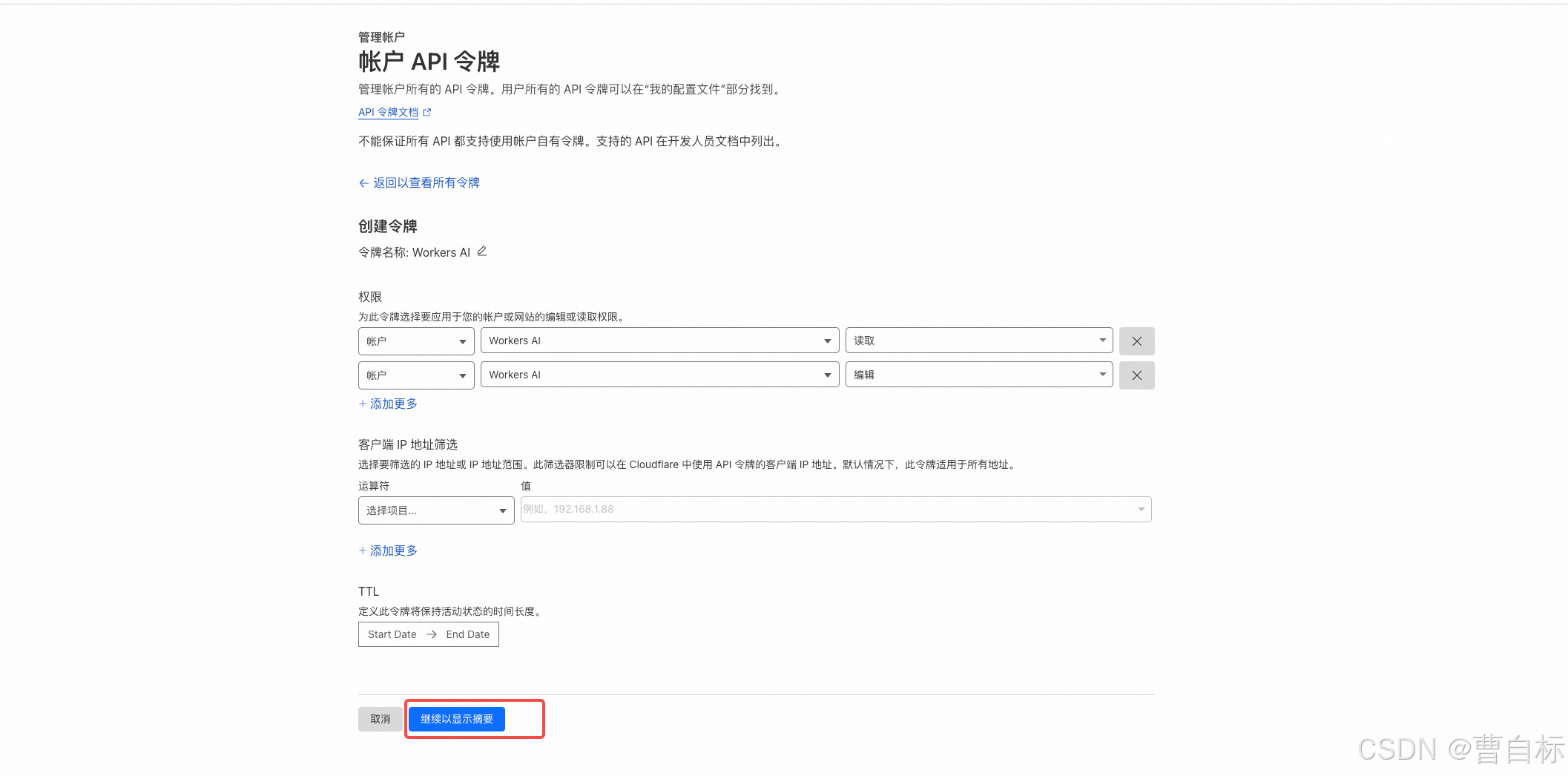
创建令牌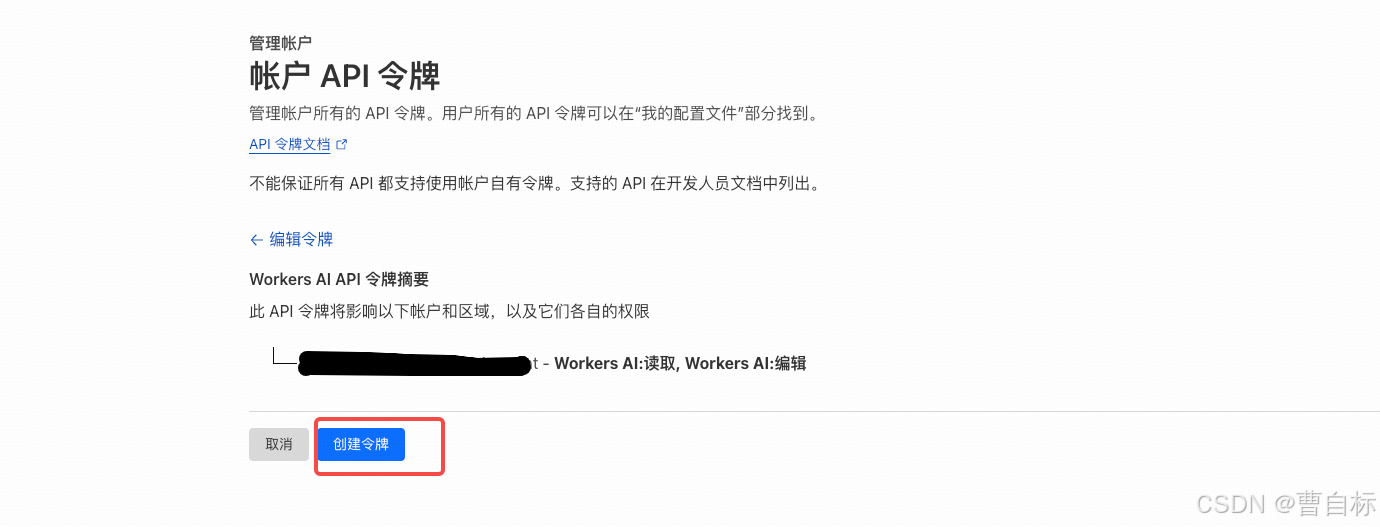
找到文生图模型github地址
Workers AI——模型——flux-1-schnell——了解更多

Guides——Tutorials——How to Build an Image Generator using Workers AI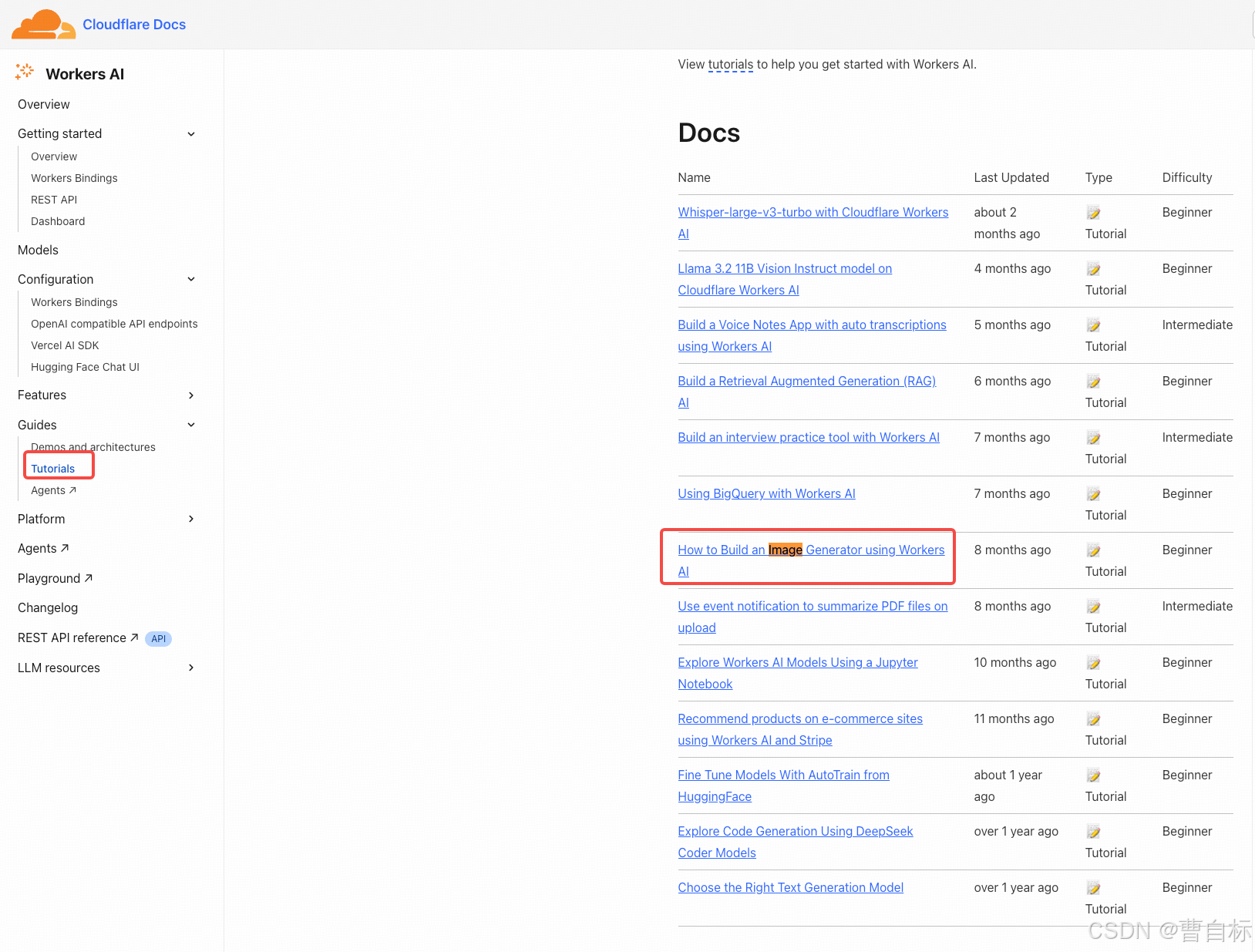
https://developers.cloudflare.com/workers-ai/guides/tutorials/image-generation-playground/image-generator-flux/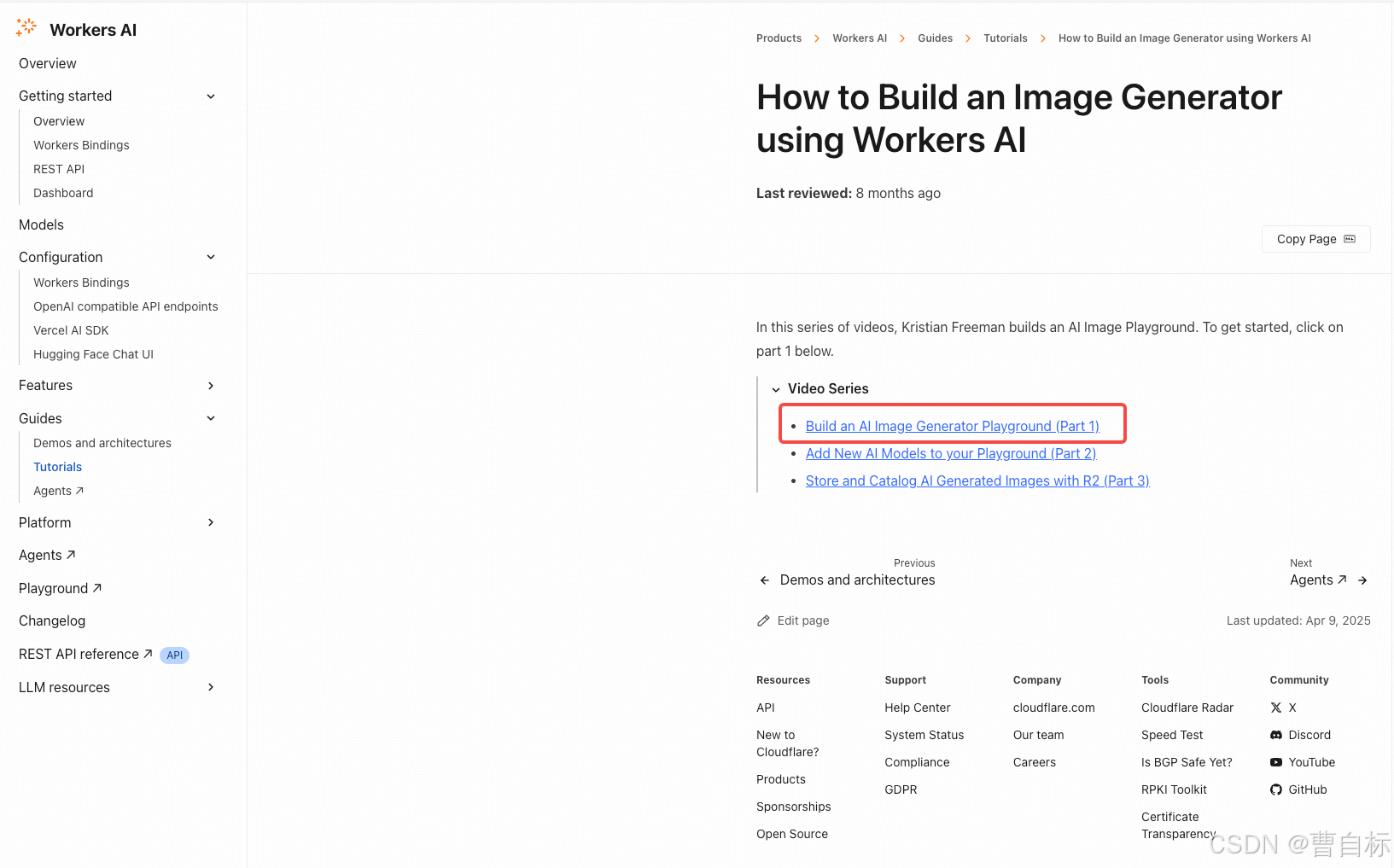
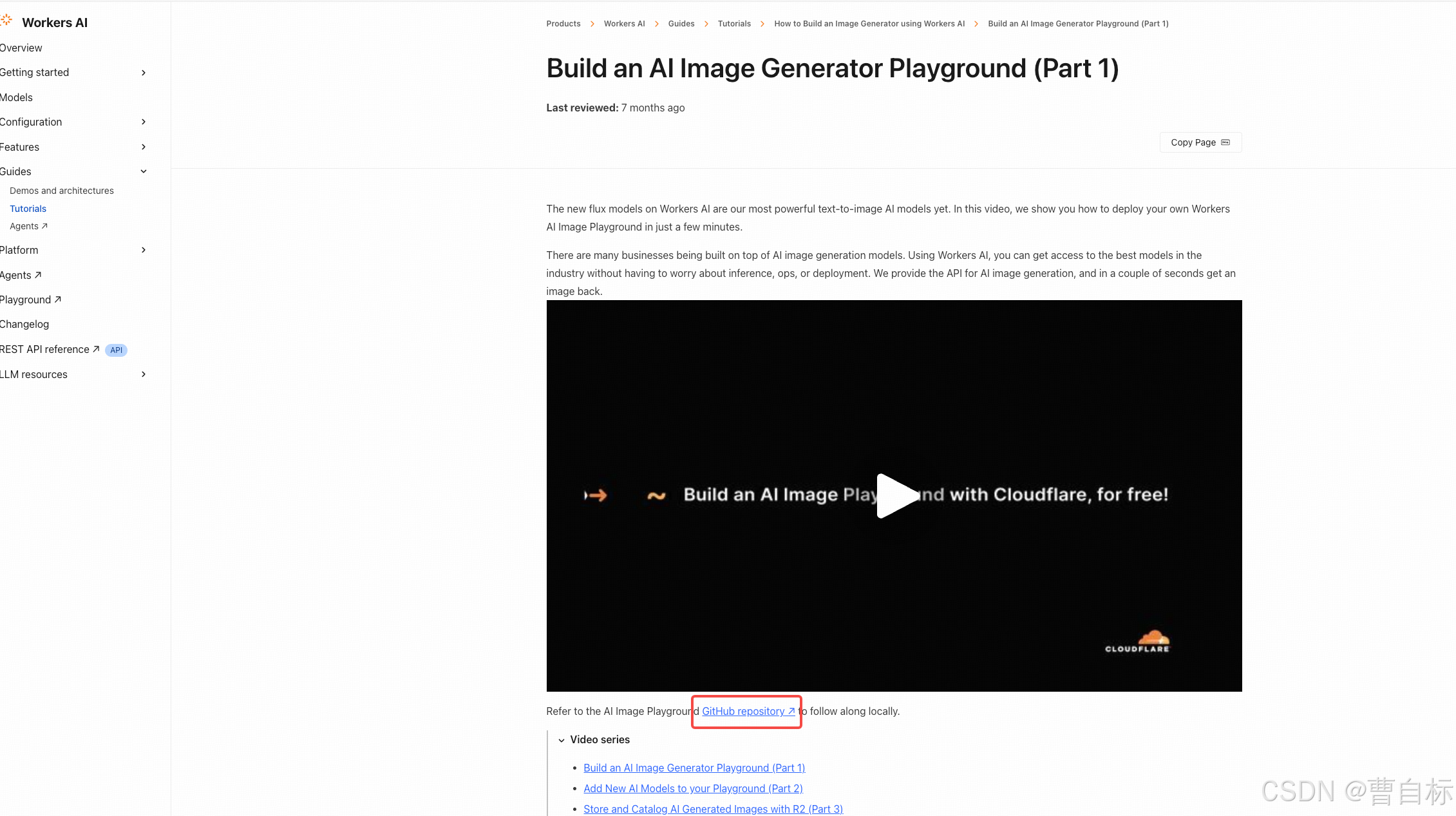
部署文生图模型
github地址
https://github.com/kristianfreeman/workers-ai-image-playground?tab=readme-ov-file#readme
执行顺序:
- git clone到本地
- 修改配置文件
- 将.dev.vars.example改为.dev.vars
- 替换CLOUDFLARE_ACCOUNT_ID(账号)和CLOUDFLARE_API_TOKEN(令牌)
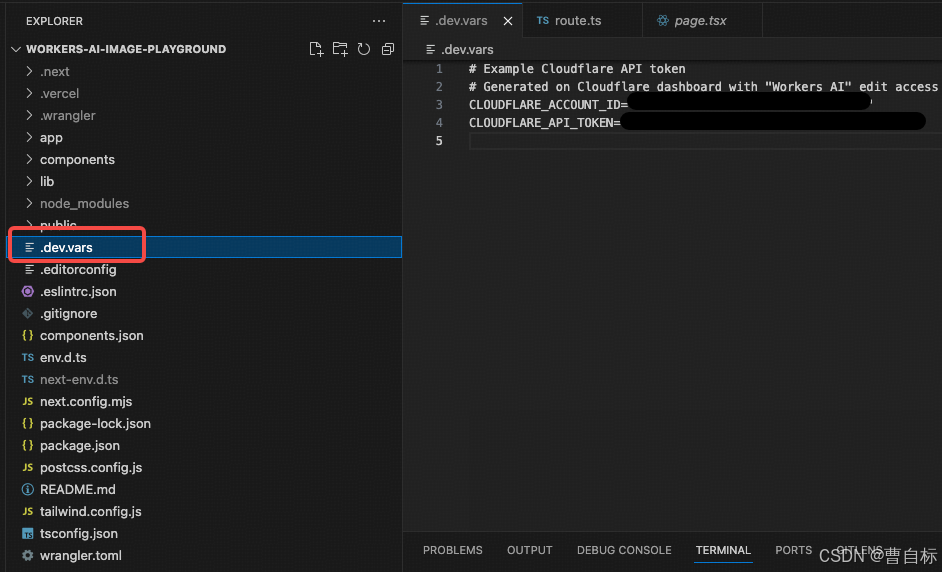
3. 执行npm install
4. 执行npm run preview(生产为preview)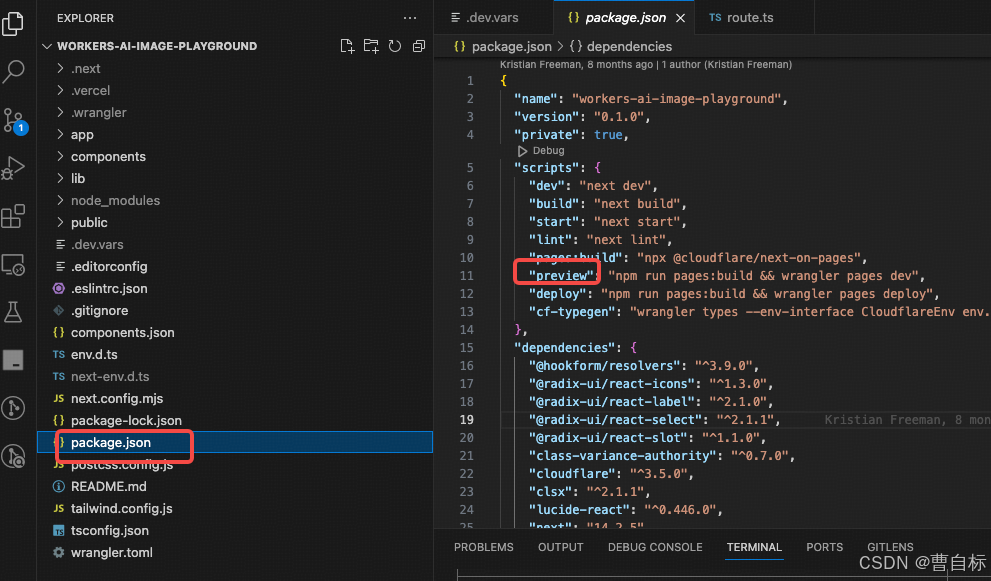
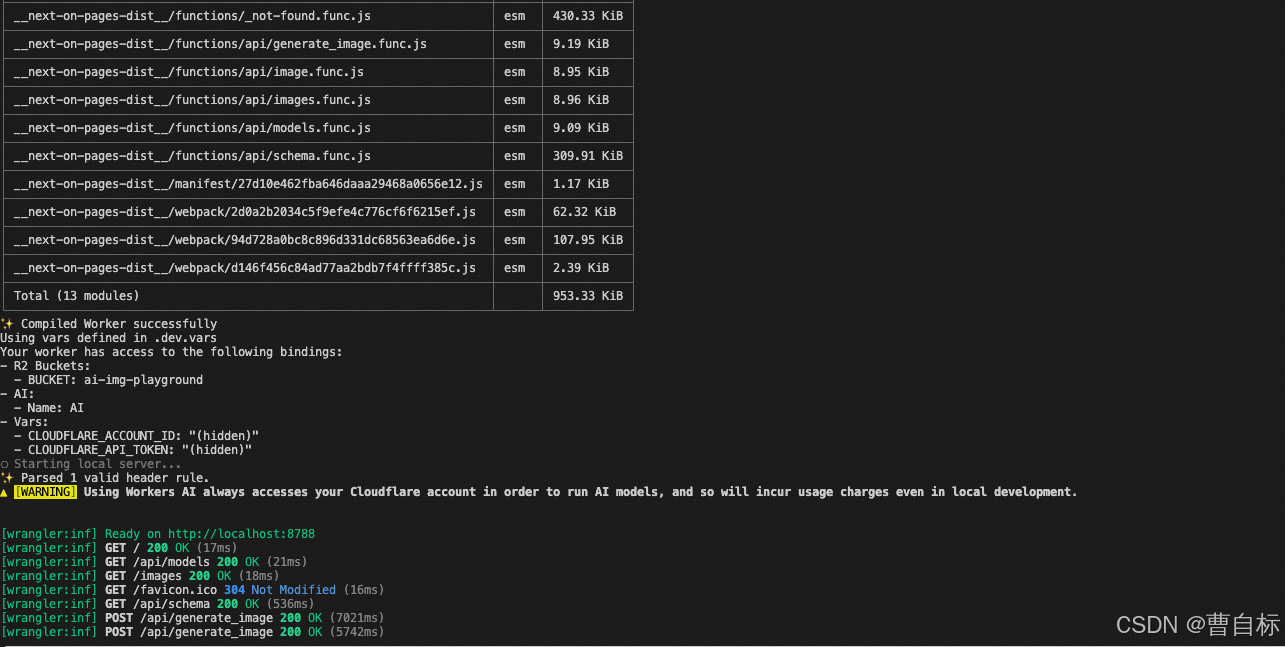
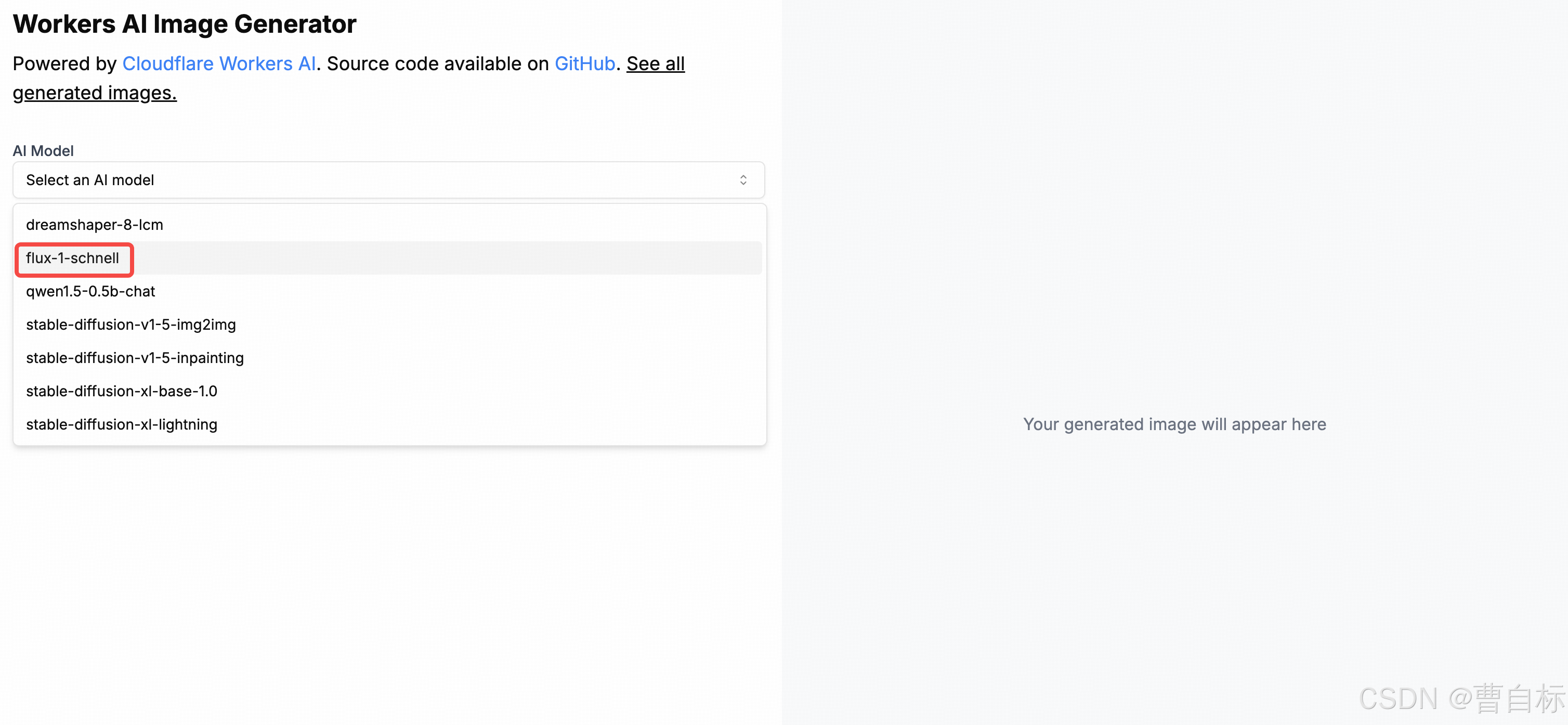
5. 打开网页(http://localhost:8788),选择flux-1-schnell
输入prompt进行测试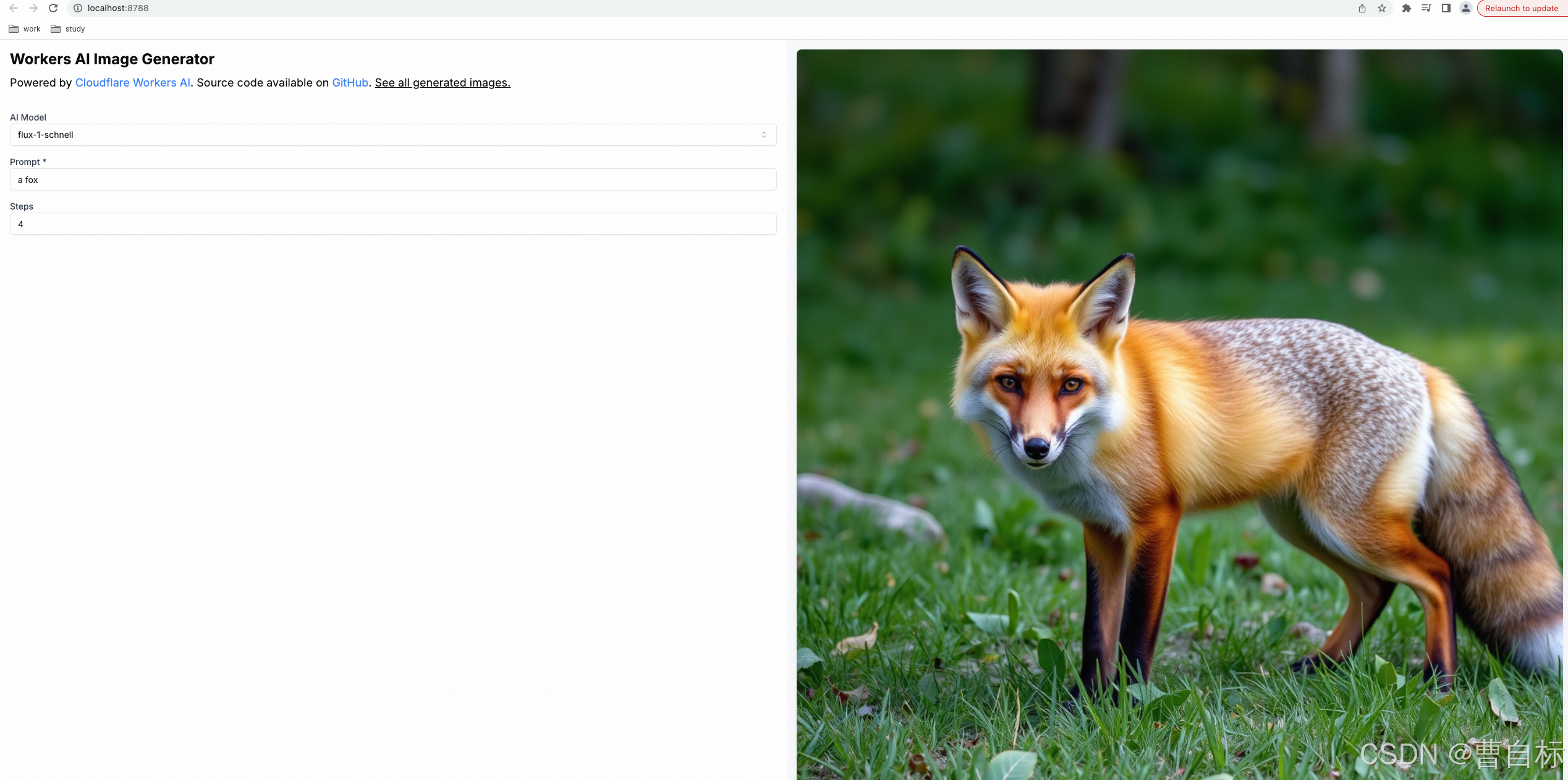
Cursor调用MCP Server
实现一个调用Cloudflare Workers AI模型的MCP Server
参照文章(https://juejin.cn/post/7485267450880229402#heading-9)进行项目设置
项目设置
让我们从创建项目和安装依赖开始:
mkdir mcp-image-generator
cd mcp-image-generator
npm init -y
npm install @modelcontextprotocol/sdk zod dotenv
npm install --save-dev typescript @types/node
接下来,创建一个基本的TypeScript配置文件。在项目根目录创建tsconfig.json:
{
  "compilerOptions": {
    "target": "ES2020",
    "module": "NodeNext",
    "moduleResolution": "NodeNext",
    "esModuleInterop": true,
    "outDir": "./dist",
    "strict": true
  },
  "include": ["src/**/*"]
}
然后,创建一个.env文件来存储你的Cloudflare凭证:
ini 体验AI代码助手 代码解读复制代码CLOUDFLARE_ACCOUNT_ID=你的账户ID
CLOUDFLARE_API_TOKEN=你的API令牌
别忘了将这个文件添加到.gitignore,保护你的API密钥不被意外公开。
构建MCP服务器
直接替换src/index.ts文件
import { McpServer } from "@modelcontextprotocol/sdk/server/mcp.js";
import { StdioServerTransport } from "@modelcontextprotocol/sdk/server/stdio.js";
import { z } from "zod";
import fs from 'fs';
import path from 'path';
import os from 'os';
import * as dotenv from 'dotenv';

// 加载环境变量
dotenv.config();

// 创建MCP服务器
const server = new McpServer({
    name: "AI图片生成助手",
    version: "1.0.0"
});

// 添加一个文生图工具
server.tool(
  "generate-image-from-text",
  "使用Cloudflare的Flux模型生成图像",
  {
      prompt: z.string()
          .min(1, "提示文本不能为空")
          .max(2048, "提示文本不能超过2048个字符")
          .describe("用于生成图像的文本描述"),
      steps: z.number()
          .int("步数必须是整数")
          .max(8, "步数最大为8")
          .default(4)
          .describe("扩散步数,值越高质量越好但耗时更长"),
      outputPath: z.string()
          .min(1, "输出路径不能为空")
          .describe("生成图片的保存目录路径"),
      filename: z.string()
          .min(1, "文件名不能为空")
          .describe("保存的图片文件名,不需要包含扩展名")
  },
  async ({ prompt, steps = 4, outputPath, filename }) => {
    const CLOUDFLARE_ACCOUNT_ID = process.env.CLOUDFLARE_ACCOUNT_ID;
    const CLOUDFLARE_API_TOKEN = process.env.CLOUDFLARE_API_TOKEN;

    const url = `https://api.cloudflare.com/client/v4/accounts/${CLOUDFLARE_ACCOUNT_ID}/ai/run/@cf/black-forest-labs/flux-1-schnell`;

    console.log(url);
    try {
        // 调用Cloudflare API
        const response = await fetch(url, {
            method: 'POST',
            headers: {
                'Authorization': `Bearer ${CLOUDFLARE_API_TOKEN}`,
                'Content-Type': 'application/json'
            },
            body: JSON.stringify({
                prompt: prompt
            })
        });

        // 解析响应
        const responseData = await response.json() as { image?: string;[key: string]: unknown };

        if (!response.ok) {
            return {
                content: [{ type: "text", text: `调用API失败: ${response.status} ${response.statusText}` }]
            };
        }

        // 提取图像数据
        let imageBase64 = null;

        if (responseData.image) {
            imageBase64 = responseData.image as string;
        } else if (responseData.result && typeof responseData.result === 'object') {
            const resultObj = responseData.result as Record<string, unknown>;
            if (resultObj.image) {
                imageBase64 = resultObj.image as string;
            } else if (resultObj.data) {
                imageBase64 = resultObj.data as string;
            }
        }

        if (!imageBase64) {
            return {
                content: [{ type: "text", text: "API返回的数据中没有图像" }]
            };
        }

        // 图像处理逻辑将在下一步添加
        // 保存图像文件
        let targetFilePath = path.join(outputPath, `${filename}.jpg`);
        let actualSavePath = targetFilePath;
        let message = '';

        try {
            // 确保输出目录存在
            if (!fs.existsSync(outputPath)) {
                fs.mkdirSync(outputPath, { recursive: true });
            }

            // 测试目录是否可写
            const testFileName = path.join(outputPath, '.write-test');
            fs.writeFileSync(testFileName, '');
            fs.unlinkSync(testFileName);

            // 将Base64图像保存为文件
            const imageBuffer = Buffer.from(imageBase64, 'base64');
            fs.writeFileSync(targetFilePath, imageBuffer);
            message = `图像已成功生成并保存到: ${targetFilePath}`;
        } catch (fileError) {
            // 备用方案:保存到临时目录
            const tempDir = path.join(os.tmpdir(), 'mcp_generated_images');
            if (!fs.existsSync(tempDir)) {
                fs.mkdirSync(tempDir, { recursive: true });
            }

            actualSavePath = path.join(tempDir, `${filename}.jpg`);
            const imageBuffer = Buffer.from(imageBase64, 'base64');
            fs.writeFileSync(actualSavePath, imageBuffer);

            message = `由于权限问题无法保存到 ${targetFilePath},已保存到临时位置: ${actualSavePath}`;
        }

        return {
            content: [{ type: "text", text: message }]
        };

    } catch (error: unknown) {
        const errorMessage = error instanceof Error ? error.message : String(error);
        return {
            content: [{ type: "text", text: `发生错误: ${errorMessage}` }]
        };
    }
}
);


// 启动服务器
const transport = new StdioServerTransport();
await server.connect(transport);
编译和运行
在package.json中添加以下脚本:
"scripts": {
  "build": "tsc",
  "start": "node dist/index.js"
}
然后编译并运行你的服务器:
npm run build
在Cursor中配置MCP服务
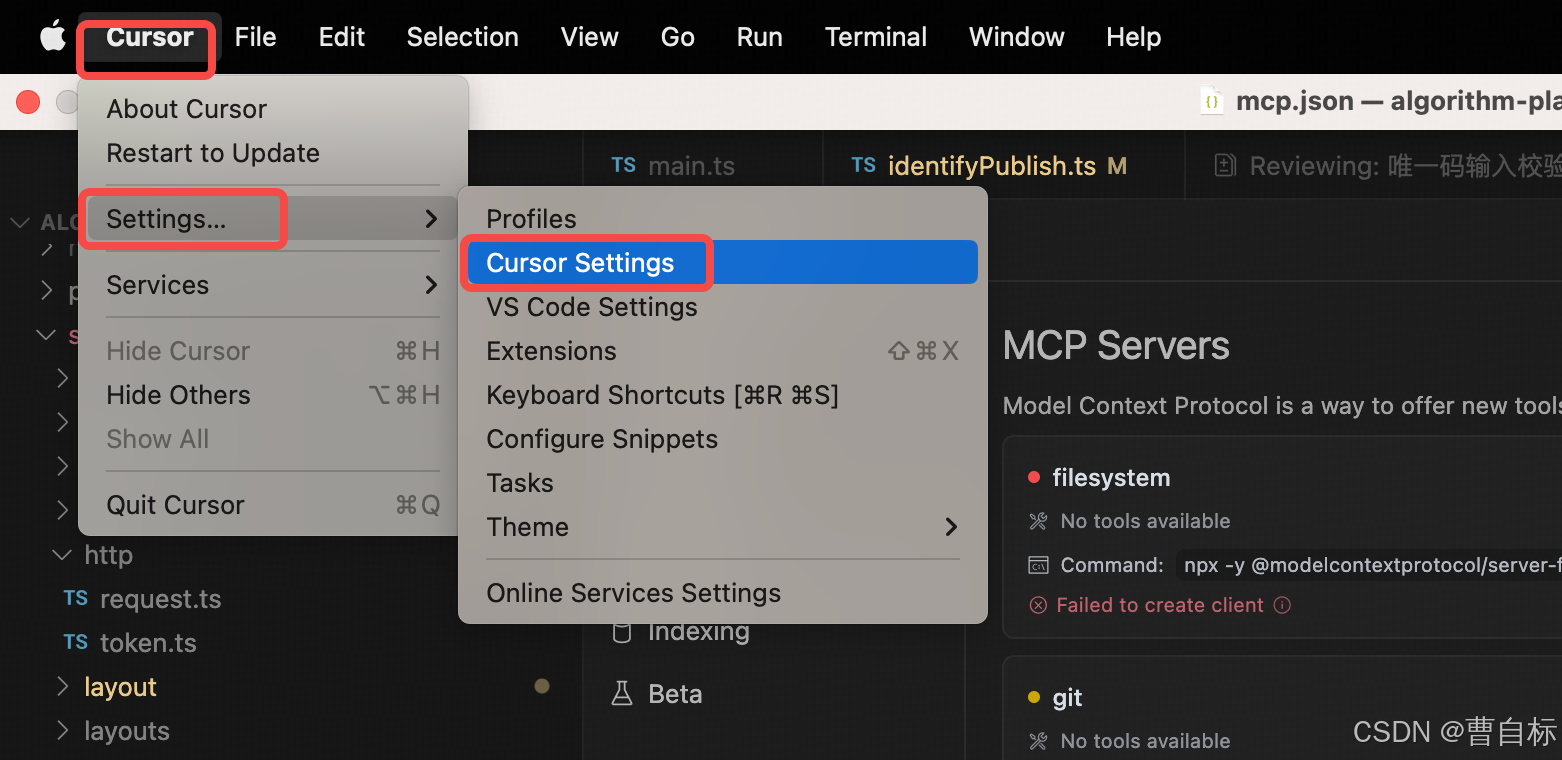
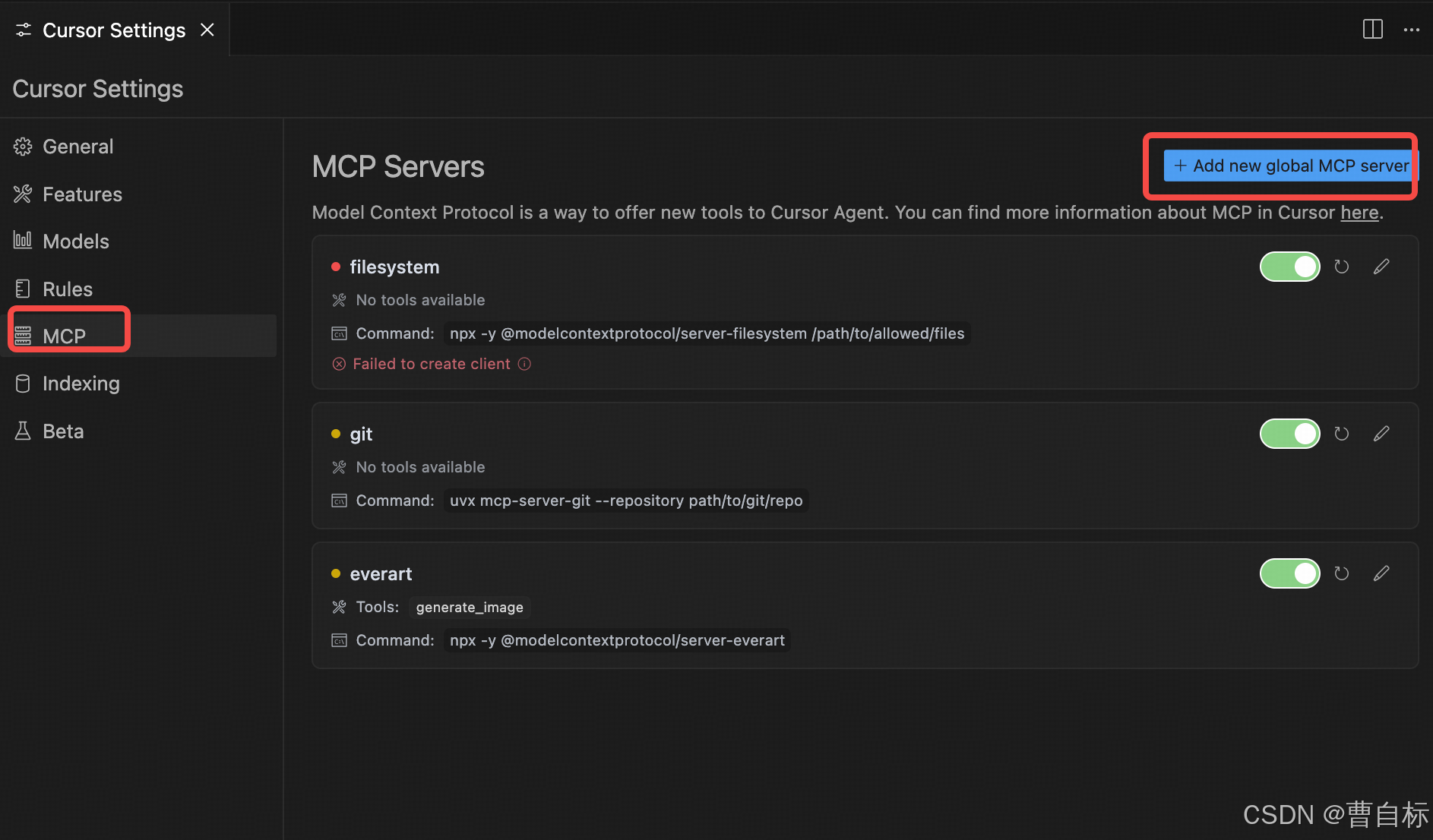
{
  "mcpServers": {
    "imageGenerator": {
      "command": "node",
      "args": [
        "/Users/admin/Desktop/work/study/mcp-image-generator/dist/index.js" # 替换为你的路径
      ]
    }
  }
}
重启Cursor使配置生效
测试效果
输入
Please generate a picture of an animal fox and save it to the directory /Users/admin/Desktop/work/study/mcp-image-generator/pictures with the filename fox.
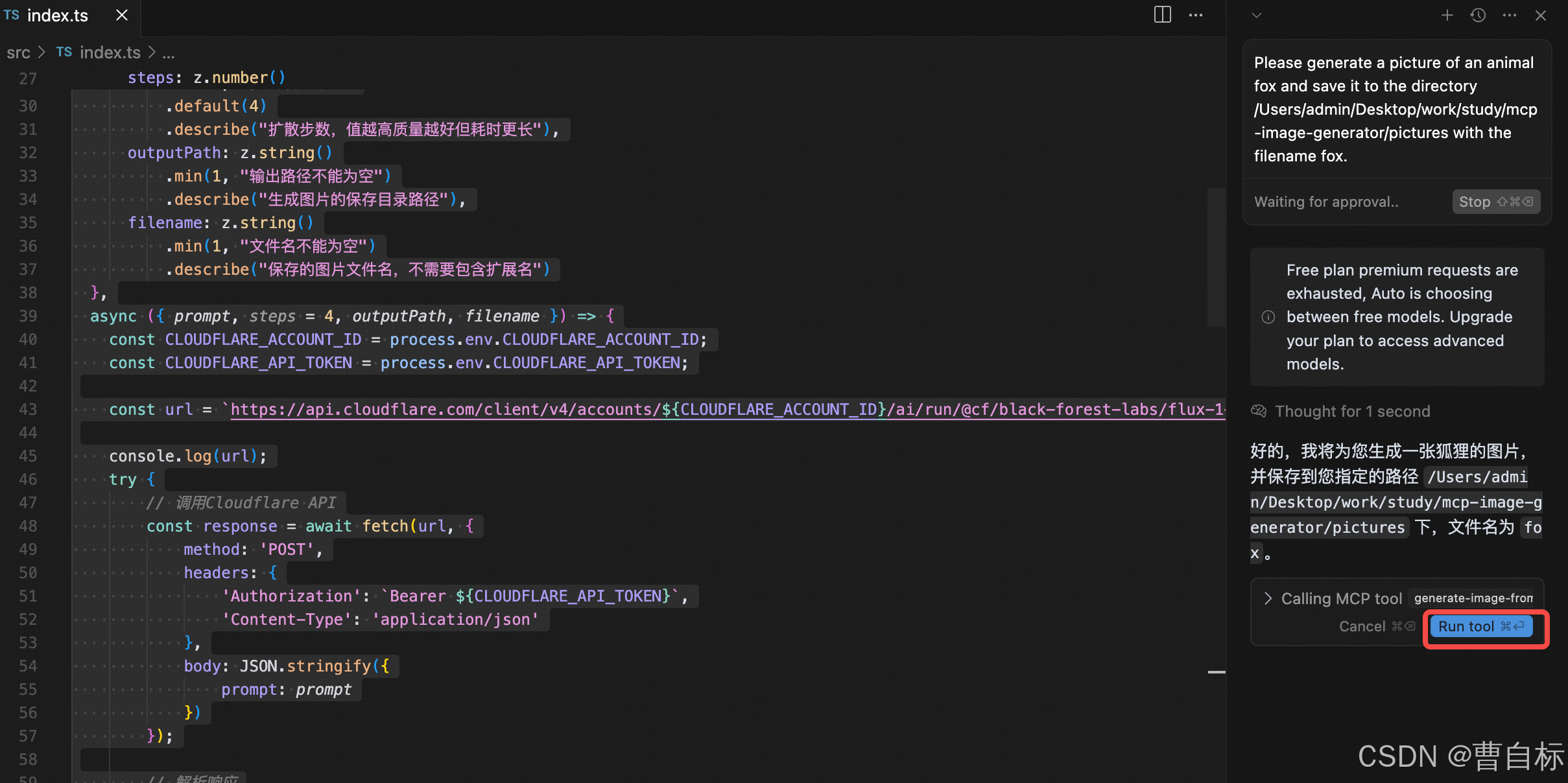
Run tool,查看图片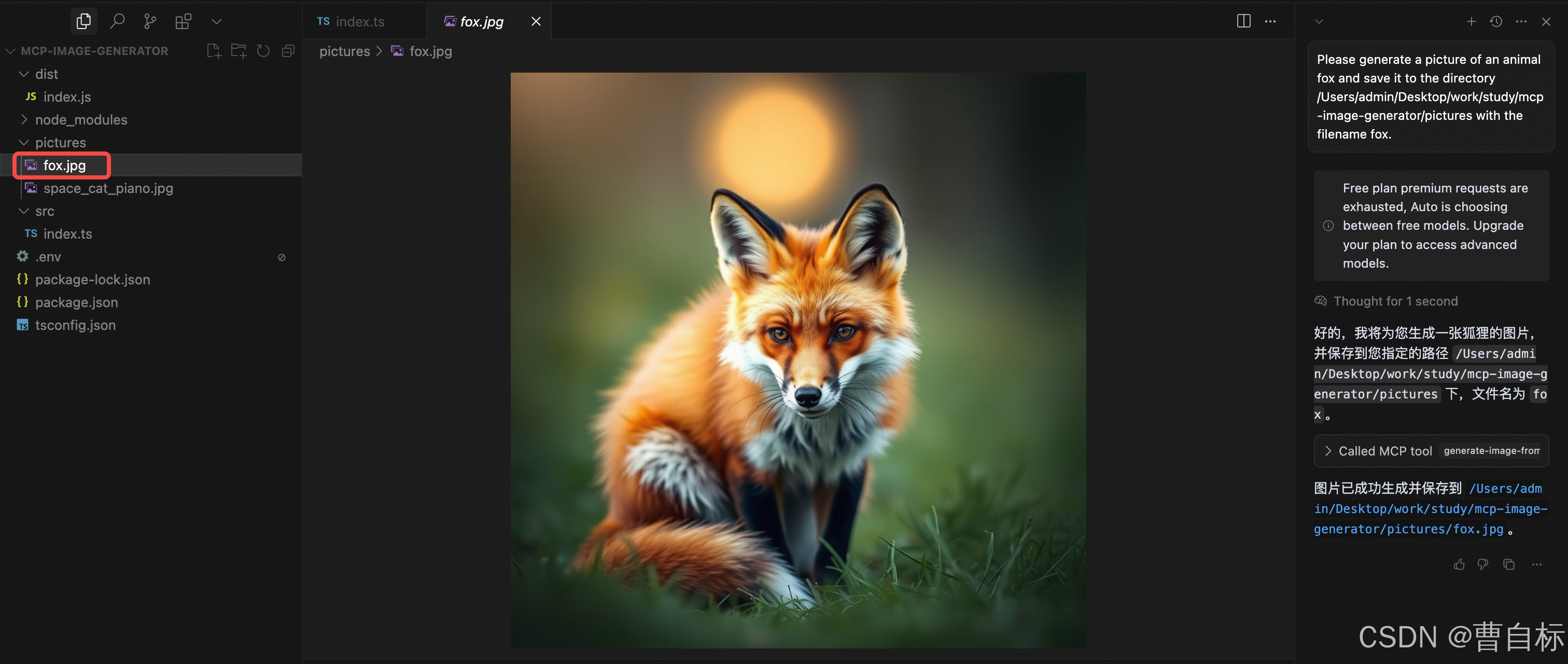
参考
https://juejin.cn/post/7485267450880229402
https://www.cnblogs.com/foxhank/p/18378208
https://github.com/fengin/image-gen-server?tab=readme-ov-file
https://cursor.directory/mcp
https://zhuanlan.zhihu.com/p/27327515233
https://blog.csdn.net/m0_65096391/article/details/147570383

火山引擎开发者社区是火山引擎打造的AI技术生态平台,聚焦Agent与大模型开发,提供豆包系列模型(图像/视频/视觉)、智能分析与会话工具,并配套评测集、动手实验室及行业案例库。社区通过技术沙龙、挑战赛等活动促进开发者成长,新用户可领50万Tokens权益,助力构建智能应用。
更多推荐
 26
26 0
0- 0


 已为社区贡献2条内容

所有评论(0)